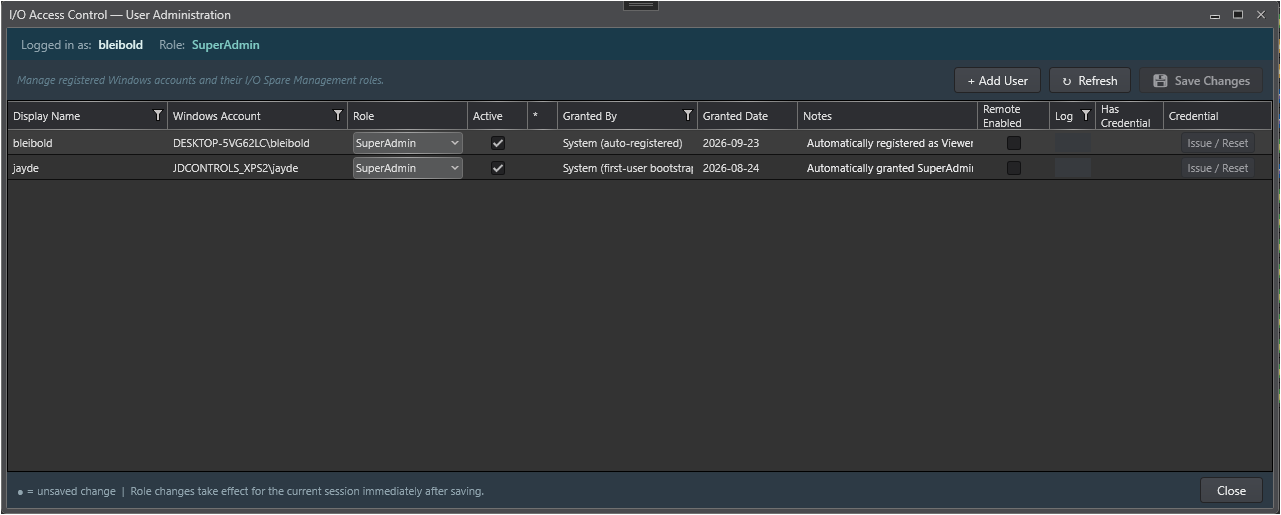
Every Windows account that opens the LCN Hardware View is automatically registered in IOSparesDb._pks_io_users with a role that controls what actions they may perform. This is the same user store used by the PKS Hardware View, so a user's role applies to both views. Roles are assigned by a SuperAdmin via the User Administration dialog.
Role Definitions
Role
Who it is for
Permissions
Viewer
Read-only observers - management, QA, auditors.
View all reservation data. Cannot create, modify, or clear any reservation.
Engineer
Project engineers who earmark spare xPM slots for upcoming work.
Reserve available slots. Modify or release reservations they personally created. Cannot touch another engineer's reservation.
Technician
Field technicians who need to claim slots during maintenance windows.
Identical reservation rights to Engineer. Cannot override another user's reservation.
SuperAdmin
Site administrators, lead engineers.
Unrestricted access. Can reserve, release, modify, or clear any slot regardless of who created the original reservation. Can promote or demote other users via User Administration.
Permission Matrix
Action
Viewer
Engineer
Technician
SuperAdmin
View reservation data
✓
✓
✓
✓
Reserve an available slot
✗
✓
✓
✓
Modify own reservation
✗
✓
✓
✓
Release own reservation
✗
✓
✓
✓
Override another user's reservation
✗
✗
✗
✓
Clear a stale reservation
✗
✗
✗
✓
Export to Excel
✓
✓
✓
✓
Run Reconcile
✓
✓
✓
✓
Manage user accounts and roles
✗
✗
✗
✓
Automatic Registration Rules
When a Windows user opens the LCN (or PKS) Hardware View for the first time, the application automatically creates their account record according to these rules:
1. Empty database - the very first user to open the view is granted SuperAdmin automatically, ensuring there is always at least one administrator who can manage the system.
2. Known user - if the Windows account already has a record, the stored role is used as-is.
3. Unknown new user - all subsequent new accounts are auto-registered as Viewer and must be promoted by a SuperAdmin before they can create reservations.
Note - Refresh My Access If a SuperAdmin changes your role while the application is open, click Refresh My Access in the Access Control ribbon group of the LCN Hardware View (key tip: RA) to reload your role without restarting.
Note - Inactive accounts An account marked Inactive is treated as if it has no permissions regardless of its role. All permission checks return false for an inactive account. The Manage I/O Users ribbon button remains grayed out for inactive SuperAdmins.
Warning - Last SuperAdmin protection The application will block any save in User Administration that would leave zero active SuperAdmin accounts. If you need to deactivate or demote the last SuperAdmin, first promote another user to SuperAdmin, then make the change.
Where Roles Are Enforced
Role enforcement is centralized in the Slot Reservation dialog. When the current user's role does not permit changes, a gray banner reads You do not have permission to modify this record. and the Save and Clear buttons are disabled. No silent denials occur - the user always sees a human-readable reason.