Report Options and Custom Parameters
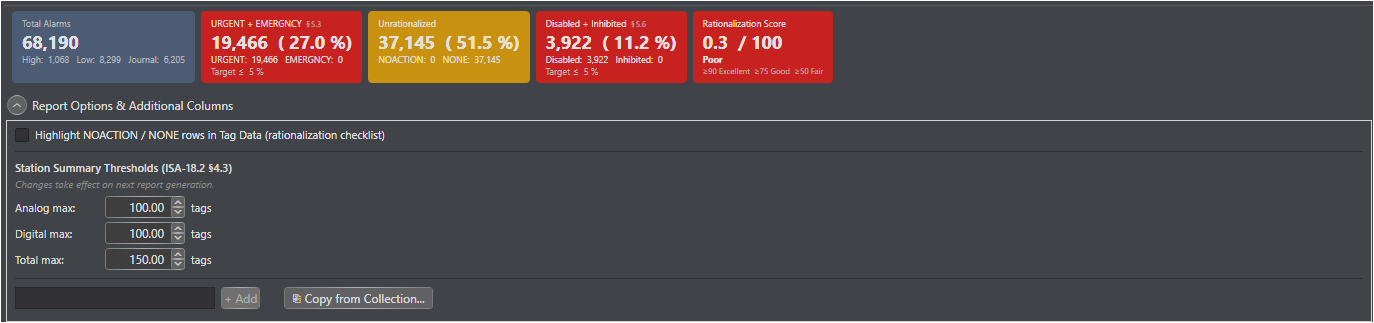
The Report Options & Additional Columns expander at the bottom of the Alarm Analysis Report view provides access to display preferences, ISA-18.2 threshold configuration, and the ability to add custom Tag Data columns. All settings are persisted to MongoDB per collection and restored automatically on the next session.
|
First Use On the first application startup, a flashing pink indicator appears next to the expander header to draw attention to these options. The indicator fades after 10 seconds and does not reappear once custom parameters have been configured.
|
Display Options
Highlight NOACTION / NONE Rows in Tag Data
When checked, any row in the exported Tag Data worksheet where at least one alarm parameter equals NOACTION or NONE is filled with a light amber background. This enables Excel's Filter by Color feature to be used as a rationalization work-list filter.
-
-
Applied at export time — toggle and re-export without regenerating the full report.
ISA-18.2 Threshold Settings
ISA Compliance Threshold
The upper percentage boundary for the green (compliant) band. A metric is compliant when its value is at or below this threshold.
-
Default: 5.0% (per ANSI/ISA-18.2-2016 §5.3 and §5.6)
-
Applies to: Critical%, Suppressed%, and the Rationalization Score formula in all worksheets.
-
ISA Marginal Threshold
The upper percentage boundary of the amber (marginal) band. A metric is marginal when it exceeds the Compliance Threshold but remains at or below this value.
-
Default: 10.0% (2× the compliance threshold — not defined by ISA-18.2; this is a site-configurable early-warning zone)
-
Metrics above the Marginal Threshold are shown in red (non-compliant).
Additional Tag Data Columns (Custom Parameters)
Any Experion block parameter name not included in the default column set can be added as a custom column in the Tag Data worksheet. Custom columns are appended to the right of the default columns in the order they were added.
Adding a Parameter
1. Type the exact parameter name in the input field (e.g. PVHHALM.PR).
2. Click Add or press Enter.
3. The parameter appears in the custom parameter list.
4. Click Save Settings to persist the list to MongoDB.
5. Regenerate the report — the new column will appear in the next Tag Data export.
Reordering Parameters
Select a parameter in the list and use the ↑ Move Up / ↓ Move Down buttons to change the column order.
Removing a Parameter
Select a parameter in the list and click Remove. Save Settings and regenerate to update the exported workbook.
Copying Custom Parameters from Another Collection
Rather than re-entering a parameter list manually, you can copy a saved configuration from another collection that has already been set up.
1. Click Copy Parameters from Collection.
2. A scope prompt appears:
Yes — scan all logical databases on the MongoDB server (slower, may take several seconds).
No — search the current database only (fast).
Cancel — abort the operation.
3. A picker dialog lists only collections that contain at least one saved custom parameter (collections with settings documents but no custom parameters are excluded).
4. Select the source collection and click Copy.
5. The parameter list is populated and automatically saved to the current collection.
Cross-Database Search
Choosing Yes at the scope prompt causes Control Architect to query every non-system logical database on the MongoDB server. Results are displayed as DatabaseName ► CollectionName in the picker.
|
Performance Note Cross-database scanning probes every user collection on the server and may take several seconds depending on the number of databases and collections. Use the No (current database only) option when speed is important.
|