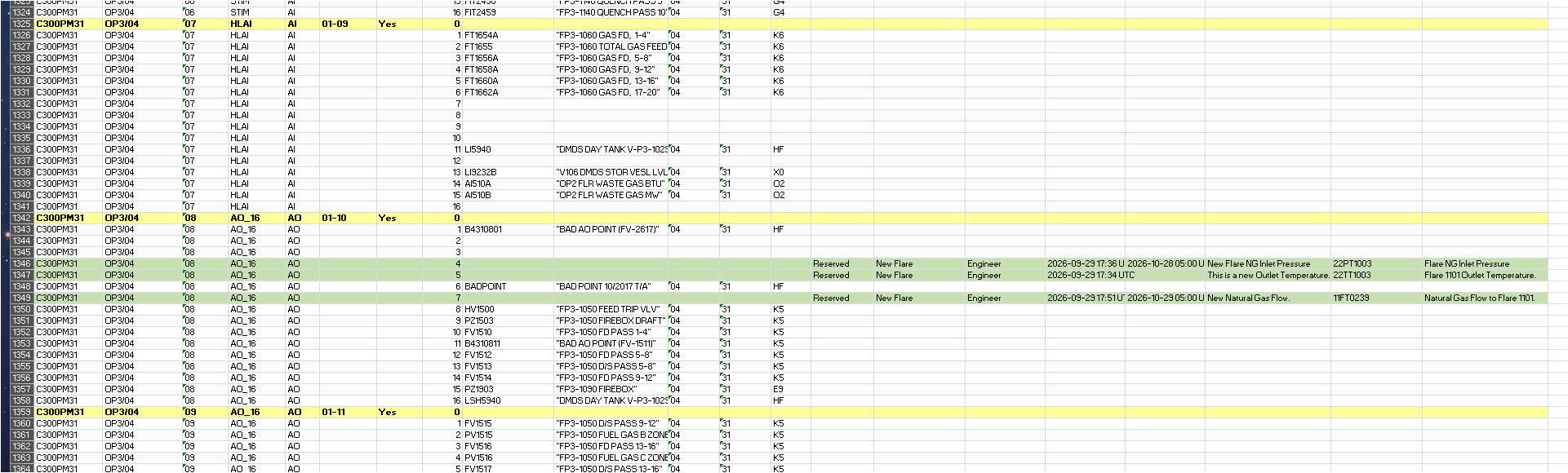
The Export All Hardware I/O Channels... command exports a single Excel workbook that mirrors the full xPM I/O structure visible in the LCN Hardware View for the current collection, cross-referenced with live reservation data from IOSparesDb. Unlike the Export Reserved I/O to Excel command, which shows only slots that have a reservation record, this export includes every I/O Module slot - whether reserved, spare, or assigned - giving a complete picture of the xPM hardware inventory.
2. Click Export All Hardware I/O Channels... in the Export ribbon group (key tip: EH).
3. The workbook is generated while a progress indicator is displayed.
4. A Save Hardware View I/O Export dialog opens with a default file name of HW_IO_XPM_<collection>_<yyyyMMdd>.xlsx. Choose a file name and location.
5. The workbook is saved, the status bar displays Exported: <file name>, and Windows Explorer opens with the new file selected.
Note Only one export can run at a time; the button is grayed out while an export is in progress.
Workbook Structure
The workbook contains a single worksheet with a two-level row structure:
Module row - one row per xPM I/O Module, showing controller, IO link, module number, card type, I/O type, location, and redundancy option. Slot-specific columns are blank on module rows.
Slot rows - one row per slot within the module, indented beneath its parent module row, showing the slot tag, description, network and node numbers, unit, and all reservation fields.
Module rows with at least one slot that carries a non-None reservation status are highlighted with a light blue background to make them easy to identify when scrolling through a large workbook.
Columns
#
Column
Populated on
Description
1
Controller
Module row
The xPM controller (node type and number, e.g. HPM13).
2
IO Link
Module row
The LCN/UCN network path (e.g. LCN01/UCN10).
3
Module #
Module row
The I/O Module number (MODNUM).
4
Card Type
Module row
The IOP card type (e.g. HLAI, LLMUX, DISOE).
5
Type
Module row
The I/O type (AI, AO, DI, or DO).
6
Location
Module row
The file / card physical location of the IOP card.
7
RedOpt
Module row
The redundancy option.
8
Channel #
Slot row
The 1-based slot number within the module (SLOTNUM).
9
Channel Tag
Slot row
The tag of the point assigned to this slot. Blank for spare slots.
The display name of the engineer who created the reservation.
17
Reserve Date (UTC)
Slot row
Date and time the reservation was created or last modified.
18
Undo Date (UTC)
Slot row
Data and time the reservation will be considered [Stale].
19
Note
Slot row
The free-text note from the reservation record.
20
New Tag Name
Slot row
The future tag name for the reserved slot.
21
New Description
Slot row
The description for the future tag name.
Row Color Coding
Color
Meaning
Blue
Slot has an active Reserved status.
Red / Amber
Slot is Stale - requires review.
Green
Slot has been Assigned (built since reservation).
Gray
Slot reservation has been Released.
(no color)
Slot has no reservation record (None) or is assigned with no reservation history.
Tip - Use this workbook for field engineering reviews The two-level module/slot structure makes this workbook well-suited for use in engineering design reviews, loop verification workshops, and field walk-down documentation because it preserves the physical IOP card layout of each xPM controller. Run Rescan xPM I/O Assignments first if a new configuration snapshot has been loaded.