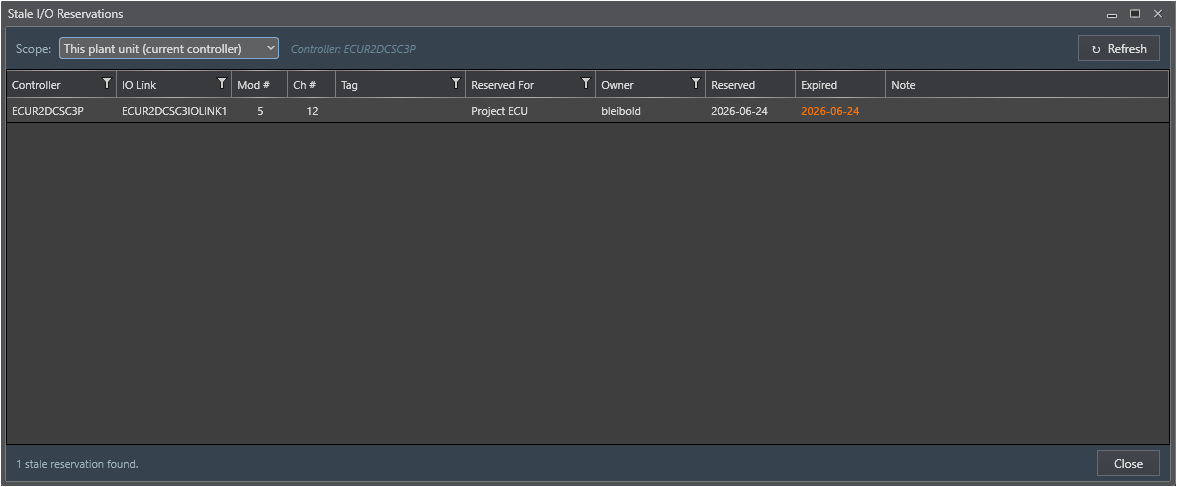
The Stale Reservation Report dialog lists every IOSparesDb reservation record whose Undo by date has elapsed or that has been flagged Stale by a Reconcile pass. It provides a single consolidated view of all reservations that require review, without the need to navigate to each channel individually in the hardware diagram.
Opening the Report
1. In the PKS Hardware View ribbon, click Stale Reservations... in the Reconcile group (key tip: SR).
2. The dialog opens and immediately loads stale records for the selected scope.
3. Use the Scope drop-down to switch between plant unit and whole-plant views.
Scope Selector
Scope
Records shown
This plant unit
Only stale records belonging to controllers in the currently loaded hardware community. Use this scope for day-to-day maintenance during a project.
Whole plant
All stale records across every controller in IOSparesDb, regardless of which community is currently loaded. Use this scope for periodic plant-wide housekeeping reviews.
Note When no hardware community is loaded, the scope automatically falls back to Whole plant.
Grid Columns
Column
Description
Controller
The controller tag that owns the stale channel (e.g. C300_01).
IO Link
The I/O Link identifier for the rack containing the channel.
Mod #
The module slot number within the rack.
Ch #
The channel number within the module.
Tag
The Experion tag stored in the reservation record at the time it was created.
Reserved For
The project name the channel was reserved for.
Owner
The display name of the engineer who created the reservation.
Reserved
The date the reservation was originally created.
Expired
The Undo by date, shown in amber to indicate it has elapsed.
Note
The free-text note from the reservation record. Hover to see the full text in a tooltip.
Toolbar Buttons
Button
Action
↻ Refresh
Reloads stale records from IOSparesDb using the currently selected scope. Use after making corrections in the Channel Reservation dialog to confirm records have been resolved.
Close
Closes the report dialog.
Acting on Stale Records
The report is read-only - corrections must be made in the Channel Reservation dialog. For each stale record, the recommended workflow is:
1. Note the Controller, IO Link, Mod #, and Ch # values from the report row.
2. Navigate to that channel in the PKS Hardware View diagram and click the channel to open the Channel Reservation dialog.
3. Review the stale banner details and take one of the following actions:
Re-reserve - update the project details and set a new Undo by date, then click Save.
Clear - if the channel is no longer needed for the project, click Clear to return it to Available status.
4. Return to the Stale Reservation Report and click ↻ Refresh to confirm the record has been removed from the list.
Tip - Routine maintenance check Run the Stale Reservation Report with Whole plant scope at the start of each project phase or monthly to catch reservations that engineers may have forgotten to release after their project completed.
Empty State
When the query returns no stale records, the report displays a green confirmation panel: No Stale Reservations Found, along with the active scope description. This is a positive result - it confirms the spare pool records are clean for that scope.