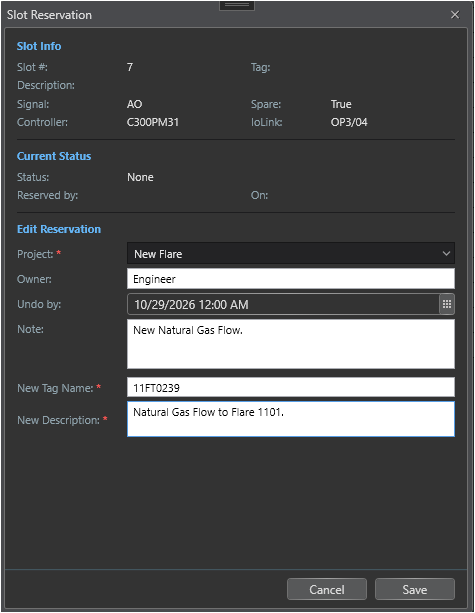
The Slot Reservation dialog lets authorized users reserve a spare xPM I/O slot for a named project, record the responsible engineer, capture the planned future tag name and its engineering description, set an optional deadline, and add a free-text note. All changes are written immediately to IOSparesDb.ModuleIO and are visible to every other user as soon as they next open or refresh the dialog.
Opening the Dialog
1. Open the LCN Hardware View and click an xPM controller node (PM, APM, or HPM) in the diagram.
2. Click a module row in the I/O Module Rack View to select it and display its slots.
3. Click the Status badge of a slot in the I/O Channel View. The Slot Reservation dialog opens for that slot.
Note When the slot already has a reservation, the current status and owner are shown in the Current Status section.
Dialog Layout
Slot Info (read-only)
The top section displays fixed information about the selected slot:
Field
Description
Slot #
The 1-based slot number within the I/O Module (SLOTNUM).
Tag
The tag of the point assigned to this slot, if any.
Description
The description of the assigned point, if any.
Signal
The signal type of the slot (AI, AO, DI, or DO).
Spare
Whether the slot is currently unassigned.
Controller
The xPM controller, as node type and node number (e.g. HPM13).
IoLink
The LCN/UCN network path of the controller (e.g. LCN01/UCN10).
Current Status (read-only)
Shows the live reservation state loaded from IOSparesDb:
Display name of the engineer who created the reservation.
On
Date the reservation was created or last modified.
Edit Reservation
The editable fields are enabled only when the current user has permission to modify the reservation. If you do not have permission, a grey banner reads You do not have permission to modify this record. See Roles and Access Control.
Three fields are required before a reservation can be saved
The Save button remains disabled until each of the following fields contains a non-blank value:
Project - the project this spare slot is being reserved for.
New Tag Name - the future tag name that will be assigned to this slot when the project is implemented.
New Description - the engineering description for that future tag.
Field
Required to Save
Description
Project
Yes
The project name this slot is being reserved for. Select an existing project name from the drop-down list or type a new name directly. All project names already in IOSparesDb are offered as auto-complete suggestions.
Owner
No
The display name of the engineer responsible for this reservation. Defaults to the current user's display name but can be changed.
Undo by
No
An optional target date by which the reservation should be reviewed, released, or confirmed. Click Select undo date... to choose a date. When this date elapses without the reservation being manually cleared, the Reconcile pass will mark the record as Stale. Leave blank if no deadline applies.
Note
No
Free-text field for any additional context - project number, work order reference, reason for reservation, or escalation contact. Accepts multiple lines.
New Tag Name
Yes
The future tag name that will be assigned to this reserved spare slot when the project is implemented (e.g. 21TIC101A). This value is stored in the reservation record and is visible in:
The slot row tooltip in the I/O Channel View, inside the reservation section that appears whenever a reservation exists.
The Excel exports as the New Tag Name column.
New Description
Yes
The engineering description for the future tag name (e.g. Reactor Feed Temperature Controller A). Stored alongside New Tag Name in the reservation record and included in both the slot row tooltip and the Excel exports as the New Description column.
Writes all reservation fields to IOSparesDb and sets the status to Reserved. Project, New Tag Name, and New Description must all be non-blank before this button is enabled.
Removes all reservation fields and sets the status back to Available. This button is only visible when the slot has an existing reservation and the current user has permission to clear it. A cleared reservation cannot be undone - a new reservation must be created if needed.
Warning - Clear is permanent Clearing a reservation removes it from the active record. The action cannot be undone from within the application. Use Clear only when the slot is genuinely being returned to the spare pool.
Banners
Banner
When shown
Stale (amber)
This reservation has passed its undo date. Includes a Clear Stale button that returns the record to Available after review.
Read-only (gray)
You do not have permission to modify this record.
Save error (red)
The reservation could not be written to IOSparesDb. The error message is displayed.
Tip Use the Stale Reservation Report to find and review all stale records across the plant without having to open each slot individually.