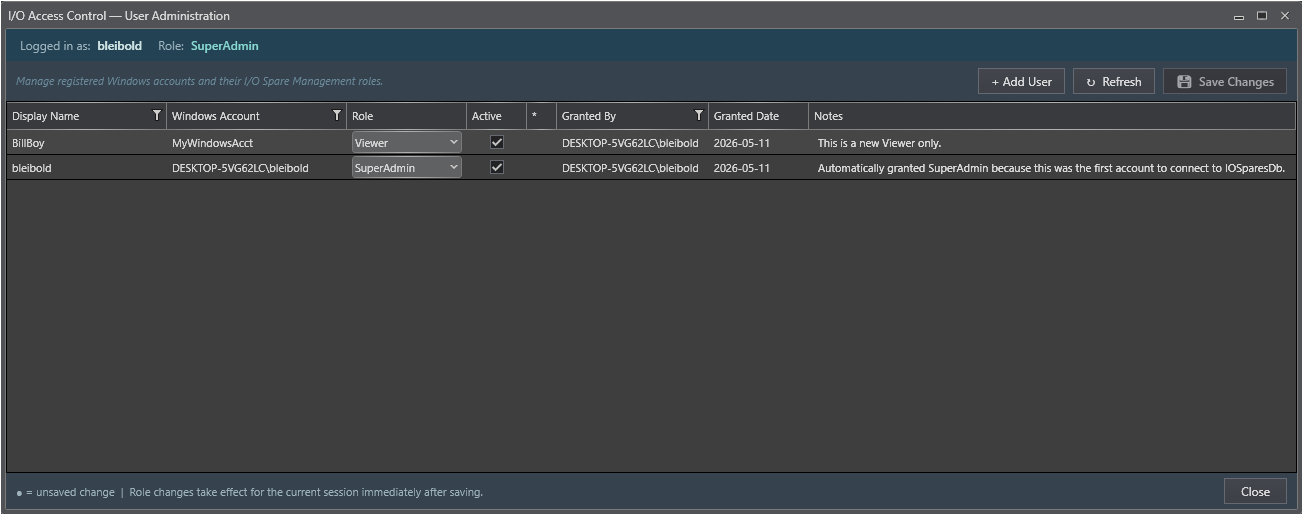
User Administration
The I/O Access Control - User Administration dialog lets a SuperAdmin manage every Windows account that is registered in IOSparesDb._pks_io_users. From this single dialog, administrators can change roles, activate or deactivate accounts, edit account notes, and pre-register new users before they log in for the first time.
Opening the Dialog
1. The Manage I/O Users... button appears in the Access Control ribbon group of the PKS Hardware View (key tip: AU).
2. The button is grayed out for any user whose role is not SuperAdmin, or whose account is marked Inactive.
3. Click Manage I/O Users... to open the dialog. The grid loads automatically - no manual Refresh is required on first open.
|
Note Only one instance of the User Administration dialog can be open at a time.
|
Dialog Layout
My Role Banner
A dark header bar at the top of the dialog displays the current administrator's display name and role, confirming who is making changes and providing a reminder if the session has been refreshed following a role change.
Toolbar
|
Button
|
Action
|
|
+ Add User
|
Opens the Register New User panel to pre-register a Windows account. See Adding a New User below.
|
|
↻ Refresh
|
Reloads all user records from IOSparesDb.
|
|
💾 Save Changes
|
Writes all pending changes to IOSparesDb and refreshes the current session. The button is disabled when no rows are dirty.
|
User Grid
Each row represents one registered Windows account. Columns with a dot indicator (?) in the first column have unsaved changes.
|
Column
|
Editable
|
Description
|
|
?
|
No
|
Dirty indicator - shown when a row has unsaved changes.
|
|
Display Name
|
No
|
The user's display name as stored in IOSparesDb. Set at registration time.
|
|
Windows Account
|
No
|
The Windows login name in DOMAIN\username format. This is the unique key for each record.
|
|
Role
|
Yes
|
The assigned role. Click once to open the drop-down and select Viewer, Engineer, Technician, or SuperAdmin. See Roles and Access Control.
|
|
Active
|
Yes
|
Whether the account is active. Click the checkbox once to toggle. Inactive accounts have all permissions revoked regardless of their role.
|
|
Notes
|
Yes
|
Free-text field for any site-specific notes about the account - department, contact number, or reason for deactivation.
|
|
Granted By
|
No
|
The Windows account name of the SuperAdmin who last saved a change to this record.
|
|
Granted Date
|
No
|
The UTC date and time of the last saved change to this record.
|
|
Tip - Single-click editing The Role drop-down and Active checkbox respond to a single click. No double-click or separate edit-mode action is required. Changes are tracked immediately with the dirty indicator (?) and are not written to the database until Save Changes is clicked.
|
Adding a New User
Users are normally auto-registered the first time they open the PKS Hardware View. The Add User panel lets a SuperAdmin pre-register an account before the user logs in, allowing a specific role to be assigned in advance.
1. Click + Add User in the toolbar. The Register New User panel slides open below the grid.
2. Enter the Windows Account in DOMAIN\username format. This must exactly match the user's Windows login name.
3. Enter a Display Name - the human-readable name shown in the grid and in reservation records.
4. Select a Role from the drop-down. The default is Viewer.
5. Click Add to save the new account immediately. The panel closes and the grid reloads with the new row in sorted position.
6. Click Cancel at any time to discard the entry and close the panel.
|
Note - Validation The Add button is disabled until both Windows Account and Display Name are filled in. If the Windows Account is already registered, an error banner is displayed at the top of the dialog explaining that the existing row should be edited instead.
|
Saving Changes
Click 💾 Save Changes to write all pending grid edits to IOSparesDb. For each dirty row, the following fields are updated:
-
-
-
-
Granted By (set to the current administrator's Windows account)
-
Granted Date (set to the current UTC date and time)
After saving, IoUserSession is refreshed so the current session immediately reflects any role change that was applied to the administrator's own account. If the administrator changed their own role to a lower one, the Manage I/O Users... ribbon button may gray out immediately after the dialog is closed.
SuperAdmin Lockout Guard
The application will block the save if the pending changes would leave zero active SuperAdmin accounts. This prevents an irreversible lockout where no user is able to open the User Administration dialog.
The error banner displayed in this situation reads:
Save blocked - at least one active SuperAdmin must always exist.
Saving these changes would lock all users out of this dialog permanently.
Assign the SuperAdmin role to another user first, then deactivate or demote this account.
|
Warning - There is no back-door recovery If the last SuperAdmin is somehow locked out (for example, by a direct database edit), the only recovery path is a manual update to IOSparesDb._pks_io_users using a MongoDB client such as MongoDB Compass, setting a user's role field to 3 (SuperAdmin) and isActive to true.
|