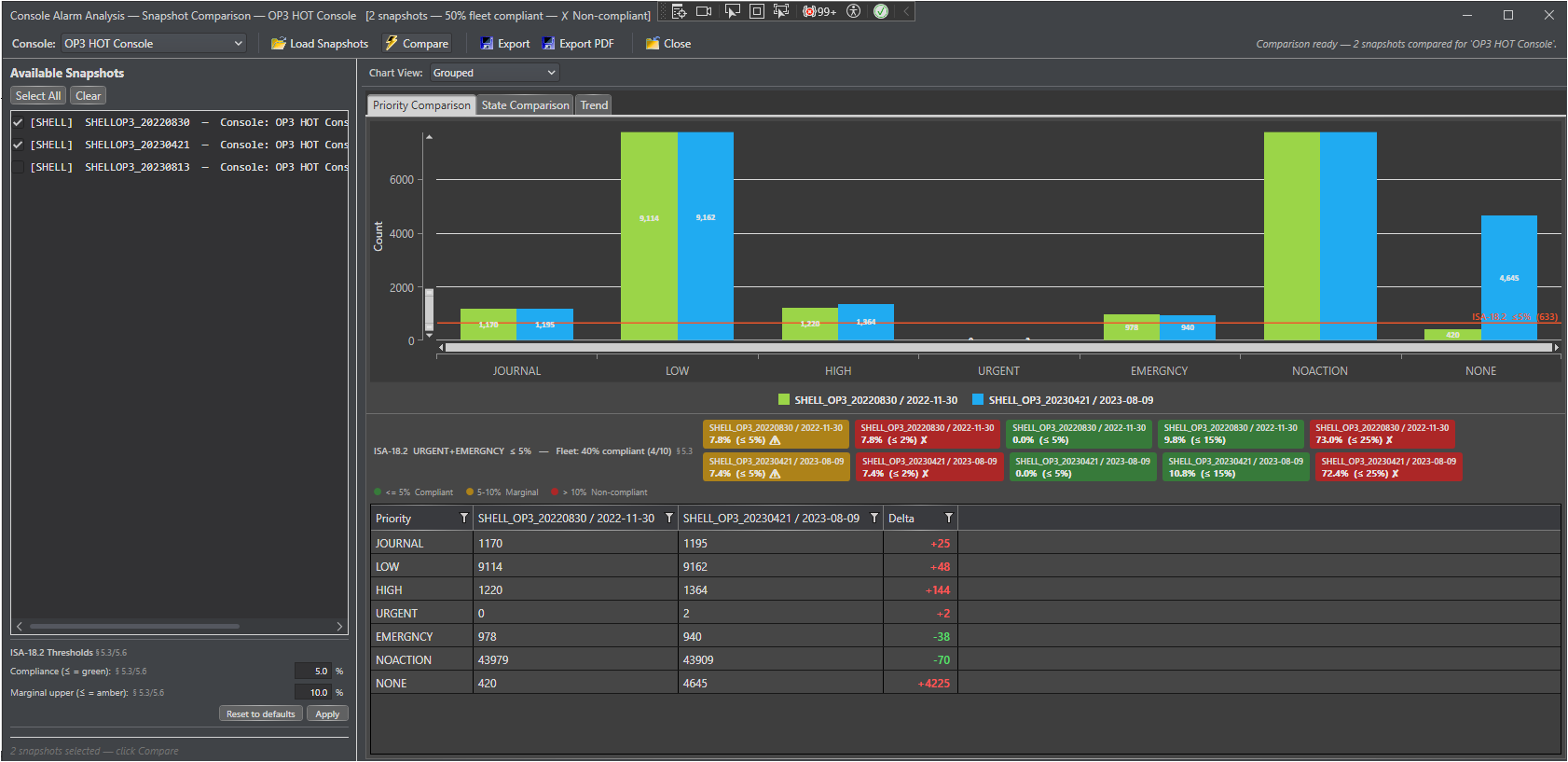
The Console Snapshot Comparison is the console-scoped variant of the Snapshot Comparison View. It is functionally identical to the Unit-Wide Alarm Comparison in layout, tab structure, KPI badges, threshold controls, and export functions, but operates exclusively on snapshots captured for a single selected console rather than the entire alarm fleet.
This page documents only the differences and additional features specific to the console variant. Read Snapshot Comparison View first for a full description of all shared functionality.
Console Selector
The console variant adds a Console drop-down at the far left of the toolbar, before all other buttons. It lists every console defined in the current Control Architect project.
Behavior
Detail
Switching consoles
Selecting a different console in the drop-down automatically reloads the snapshot list for that console — there is no need to click Load Snapshots manually after changing the selection.
Initial state
The first time the window opens, ISA-18.2 thresholds are loaded from MongoDB before snapshots are fetched, ensuring the correct site thresholds are in effect from the first comparison. Snapshot loading begins automatically once a console is selected.
Status message
The toolbar status message (right side of toolbar) always names the active console, for example:
Found 4 snapshot(s) for 'UNIT-1'. Select 2 or more to compare.
No snapshots found? If the snapshot list is empty after selecting a console, no console alarm analysis report has been generated and saved for that console yet. See Trend Analysis and Snapshots and ensure a console report has been generated at least twice (two reports = two snapshots = the minimum required for a comparison).
Snapshot Scope
Console snapshots are stored under document type ConsoleAlarmSnapshot and are entirely separate from the unit-wide snapshots used by the Unit-Wide Alarm Comparison view. This means:
A console's snapshot history is independent of the unit-wide snapshot history — they do not interfere with each other.
Each console maintains its own progression of snapshot dates, so comparisons correctly reflect that console's individual rationalization trajectory rather than the whole plant.
Switching to a different console in the drop-down clears the current snapshot list and comparison results before loading the new console's data.
Window Title Bar
After each Compare run, the window title bar includes the active console name alongside the fleet compliance summary:
The status indicator (✓ / ⚠ / ✗) and the percentage reflect the combined ISA-18.2 assessment across all Priority §5.3 and State §5.6 KPI badges for the selected snapshots of that console only.
ISA-18.2 KPI Badges
The badge strips on the Priority and State tabs behave identically to the unit-wide view. Five badges are produced per snapshot on the Priority tab (§5.3) and one on the State tab (§5.6) — see ISA-18.2 §5.3 Compliance Badges for the full badge table and color-coding rules.
Because the console view measures a subset of the total alarm fleet, the percentages for a given console may differ significantly from the unit-wide totals — a console with a high concentration of process-critical alarms may appear non-compliant on the Priority §5.3 combined badge even when the unit-wide fleet is within target.
Interpreting Console KPIs vs. Unit-Wide KPIs Use the Console Comparison view to identify which individual consoles are driving a unit-wide non-compliance result. If the unit-wide URGENT+EMERGNCY badge is red but most console badges are green, the problem is concentrated in one or two specific consoles — target rationalization effort there first.
Export File Naming
The Export and Export PDF dialogs use a console-aware default file name that includes a timestamp, for example:AlarmSnapshotComparison_yyyyMMdd_HHmmss.xlsx
Rename the file to include the console name before saving if you intend to retain exports for multiple consoles, for example: UNIT1_AlarmSnapshot_20250610.xlsx.
Comparison with the Unit-Wide View — Feature Matrix