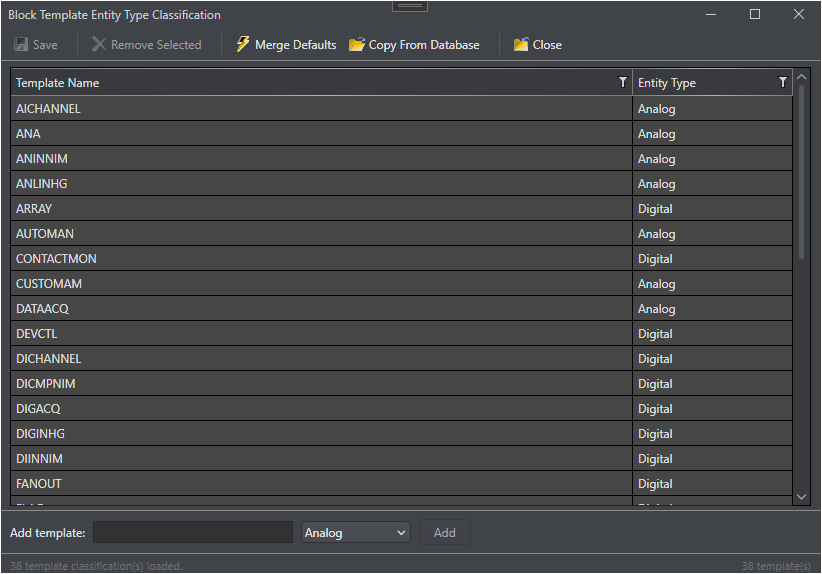
Block Template Editor
The Block Template Editor manages the list of PKS block templates recognized by Control Architect and controls how each template is classified for alarm analysis. Each template is assigned an Entity Type of Analog or Digital, which determines how its tags are counted and categorized across all alarm analysis worksheets.
Opening the Block Template Editor
1. In the navigation tree, expand the relevant Configuration Collection.
2. Select Block Template Editor from the Configuration section.
3. The editor displays a grid listing all block templates currently registered in the collection.
Template Grid Columns
|
Column
|
Description
|
|
Template Name
|
The PKS block template identifier (e.g., PIDTPL, LOGIC_TPL)
|
|
Entity Type
|
The classification assigned to this template: Analog or Digital
|
|
Tag Count
|
The number of tags in the current Configuration Collection that use this template
|
|
Description
|
An optional free-text description of the template’s purpose
|
Adding a Block Template
1. Click Add in the toolbar (or press Insert).
2. Enter the Template Name exactly as it appears in the PKS database (case-sensitive).
3. Select the Entity Type: Analog or Digital.
4. Optionally enter a Description.
5. Click Save to commit the new template to MongoDB.
|
Note: Template names are matched against the BLKTYPE attribute on tags imported from the PKS Experion XML export. Ensure the name matches exactly, including case.
|
Editing a Block Template
1. Click the template row you want to edit.
2. Click Edit in the toolbar (or double-click the row).
3. Modify the Entity Type or Description as required.
4. Click Save to commit the change.
|
Important: Changing a template’s Entity Type takes effect immediately for all future report generations. Previously saved snapshots are not retroactively updated.
|
Deleting a Block Template
1. Select the template row to delete.
2. Click Delete in the toolbar (or press Delete).
3. Confirm the deletion in the prompt.
|
Important: Deleting a template classification causes all tags using that template to appear as unclassified (amber row) in the Tag Data worksheet until the template is re-added.
|
Entity Type Reference
|
Entity Type
|
Typical Templates
|
Alarm Characteristics
|
|
Analog
|
PIDTPL, REGCTL, ANAIND
|
Limit-based alarms: PVHI, PVLO, PVHIHI, PVLOLO, DEVHI, DEVLO, ROCHI
|
|
Digital
|
LOGIC_TPL, DIGIND, DISCNT
|
State-based alarms: ALMOPT, STATE.ALMENBST, CMDDIS, OFFNORML
|
Unclassified Templates
Tags whose block template is not present in the Block Template Editor list are treated as unclassified. In the report output:
-
The Tag Data worksheet highlights unclassified rows in amber.
-
The Template Breakdown worksheet groups them under Unknown.
-
Unclassified tags are excluded from Analog and Digital counts in the Station Summary.
To resolve unclassified tags, add the missing template to the Block Template Editor and assign the correct Entity Type.
Importing Classifications from Another Collection
If you have already classified templates in another Configuration Collection, you can copy those classifications using the Copy From Database command instead of re-entering them manually.
|
Tip: After importing tag data for a new Configuration Collection, open the Block Template Editor and filter the Tag Count column to identify any templates with tags that are not yet classified.
|
Persistence
Block template classifications are stored in MongoDB as part of the Configuration Collection. They are not imported automatically from Experion; they must be configured in Control Architect or imported via the Copy From Database command.
See Also