This topic explains how to map Console Stations to Operator Consoles.
Opening Console Mapping
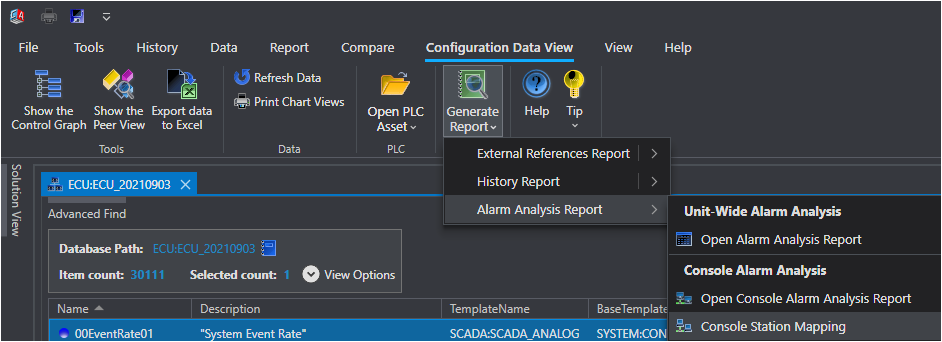
1. In the Ribbon Toolbar for the configuration [Data View] tab navigate the menu - Generate Report - Alarm Analysis Report - Console Station Mapping.
2. Select Console Station Mapping from the menu.
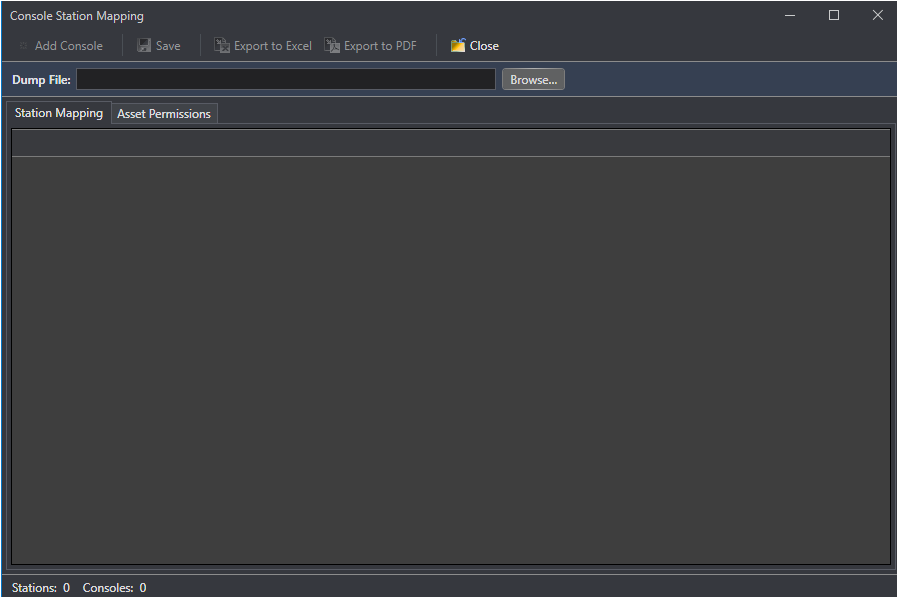
3. The Console Mapping grid displays all configured Operator Consoles and their assigned Console Stations.
Importing a Console Dump File
1. Users must export a Console Dump text file from their primary PKS Server.
a. Run this command on a PKS Primary Server: crtdmp > C:\Temp\crtdmp.txt
2. Select Console Station Mapping from the menu.
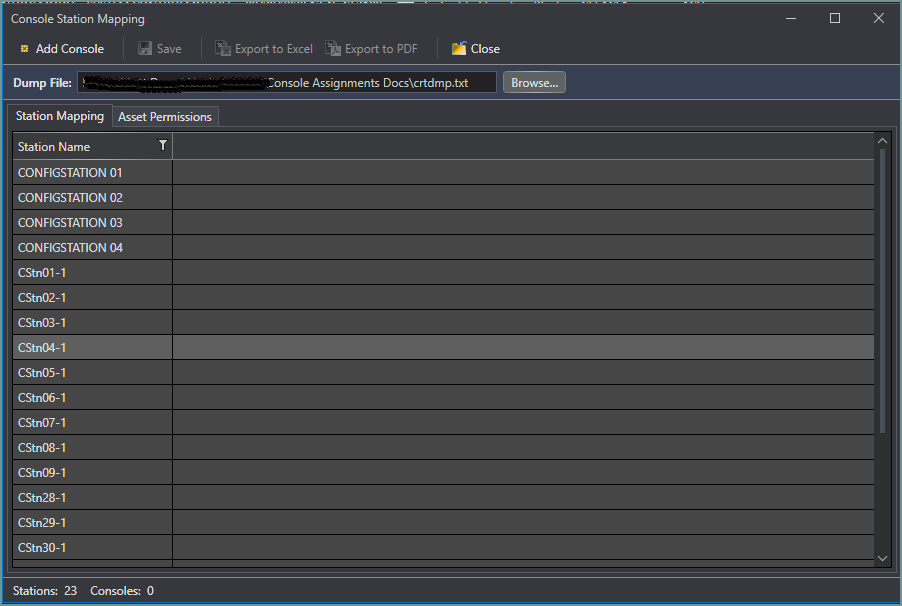
3. Click the [Browse...] button to select the Console configuration dump file.
Assigning Console Stations to an Operator Console
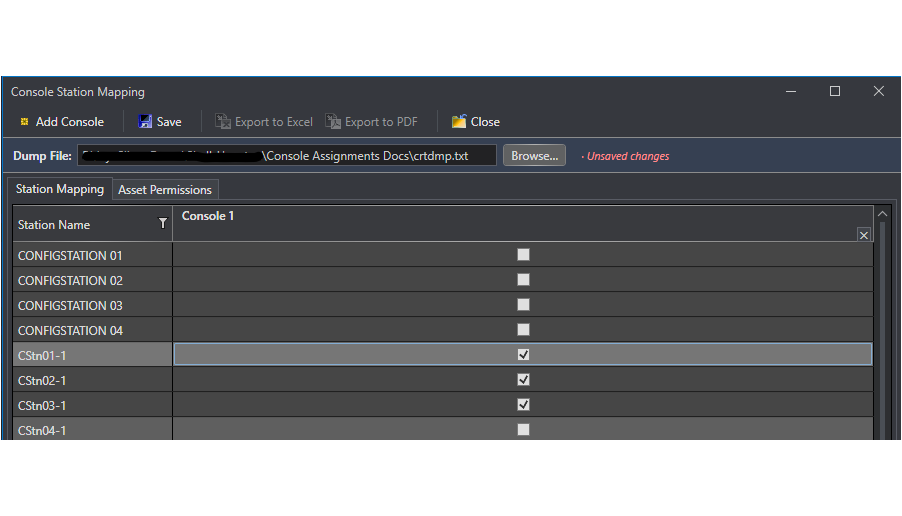
1. Click the [Add Console] button to add an Operator Console. Edit the default name in place.
2. Check the Console Stations that are assigned to this Operator Console. You cannot assign multiple Console Stations to an Operator Console.
3. Click Save to commit the mapping assignments to the Database.
Removing a Console Assignment
1. Locate the Console Station column and click its [x] button located in the top right corner of the Column view.
2. Click Save.
Note: Tags whose Assets are not assigned to an Operator Console or Console Station are excluded from all Console Alarm Analysis Reports but remain in the unit-wide alarm summary.
Asset Permissions
Select the [Asset Permissions] tab to view the Asset Assignments and other Console configuration items.
Filtering the Grid
Use the filter row at the top of the [Station Name] column to narrow the Console Station list.